

Oregon Equestrian Trails utilizes Google Calendar as an integral part of OET’s Cloud Services (powered by Google for Nonprofits). This single, unified system ensures that our chapter trail rides, campouts, work parties, and monthly meetings are seamlessly published in the Riders Roundup newsletter and displayed instantly on the OET Website Calendar Month View.
Whether you are a chapter officer managing events or a member looking to sync upcoming rides with your personal calendar, this comprehensive guide covers everything you need to know. We cover the open calendar standards that allow different devices to communicate, the two methods for chapter leaders to manage events (the recommended OET Chapter Event Dashboard and the standard Google Calendar app), how to avoid the common “Wrong Calendar” trap, and visual walkthroughs of the default calendar apps across Apple iPhone, Google Pixel, Samsung Galaxy, PC, and Mac.
Making Sense of the Technology Mess: Calendar Standards & Google’s Central Role
If you have ever felt frustrated trying to get an iPhone, a Samsung Galaxy, a Windows PC, and an iPad to agree on what day and time a trail ride is happening, you are not alone. Modern digital scheduling often feels like a “technology mess”—every device maker promotes their own proprietary app, whether it is Apple Calendar, Samsung Calendar, Microsoft Outlook, or Google Calendar.
So how do these completely different devices and competing operating systems talk to each other without total chaos? The answer lies in universal open calendar standards, and understanding where Google Calendar fits into the puzzle:
1. The Universal Standards: iCalendar (.ics) and CalDAV
Behind the scenes, the global technology industry established universal protocols so schedules could travel across the internet seamlessly between different software companies:
- The iCalendar Format (RFC 5545): Often seen with a
.icsfile extension or awebcal://link, iCalendar is the universal language of calendar data. Whether an event is created in Apple Calendar, Google Calendar, Samsung Calendar, or Outlook, the underlying data structure (start time, end time, title, GPS map location, recurrence rules) is formatted in this exact open standard. - CalDAV (Calendar Distributed Authoring and Versioning): This is the open networking protocol that allows your smartphone or computer to securely read, write, synchronize, and update calendar entries on a remote cloud server in real time. When you edit an event on your phone or toggle a checkbox, CalDAV is the standard that delivers that change to the cloud server.
2. Where Google Calendar Fits into this Technology Mess
Think of the calendar applications on your phone as simply “windows” (client viewers), while Google Calendar serves as OET’s central “storage vault” (the Cloud Server Hub):
- The Central Source of Truth: Instead of calendars being trapped inside individual physical phones, OET hosts all 12 chapter calendars and the state calendar in a central, authoritative cloud repository powered by Google for Nonprofits.
- Universal Bridge Across Brands: Because Google Calendar fully supports open CalDAV and iCalendar standards, it doesn’t care whether you use an iPhone, a Samsung Galaxy, a Google Pixel, a Mac, or a PC. Any device can connect to Google’s cloud hub, read the current schedule, and (if authorized) post new events.
- Powering the Website & Newsletter: Having Google Calendar act as the central hub allows OET to automate everything downstream: when a chapter leader publishes an event to Google Calendar, it instantly updates the live OET Website Calendar, queues into the printed Riders Roundup newsletter, and feeds our custom OET Chapter Event Dashboard.
In short: You do not have to switch devices. Google Calendar provides the neutral backbone that allows Apple, Samsung, Google, and PC users to stay completely synchronized on a single state-wide schedule.
Two Methods for Chapter Leaders to Manage Events
Authorized chapter officers have two ways to add and edit events. Both publish to the same live OET Google Calendars, but each has distinct advantages:
Method 1 (Recommended): The OET Chapter Event Dashboard
🌟 Recommended Web App: For Chapter Officers, State Administrators, and Board Members, OET has rolled out a custom, streamlined web application: the OET Chapter Event Dashboard (dashboard.myoet.org). (Refer to the OET Brief: Chapter Event Dashboard documentation for complete architectural and user guidance).
- Completely Eliminates the “Wrong Calendar” Trap: When using standard calendar apps on a phone, it is very easy to accidentally post an OET event to your personal calendar (or post a personal appointment to OET!). The Dashboard authenticates securely via Google OAuth and connects directly and exclusively to your authorized OET chapter calendars, making cross-calendar errors impossible.
- Automated Chapter Naming Standards: You do not need to remember formatting rules. The Dashboard automatically prepends your chapter abbreviation (e.g.,
[RO],[TV],[NW]) to event titles for state-wide consistency. - Automatic Contact Placement: Contact info (name, phone, or email) is automatically placed right at the beginning of the event description.
- Streamlined Event Tools: Includes quick one-click buttons to Edit (with single vs. entire series options for recurring events), Clone past rides/meetings into new dates, Move events between calendars, Delete (with a required capital “DELETE” confirmation to prevent accidental loss), and Print Calendar (generates a compact 12-month printable handout for chapter meetings).
- Newsletter & Website Integration: Events feed instantly to the website and are automatically formatted for the monthly Riders Roundup print layout queue.
How to Access: Navigate to https://dashboard.myoet.org on any smartphone, tablet, or PC, check “Keep me signed in for 1 hour”, and click “Sign in with Google” using your OET-registered email address. (Note on first login: Click “Advanced” > “Go to dashboard.myoet.org (unsafe)” to bypass Google’s standard prompt for private internal apps).
Method 2: Using the Standard Google Calendar App
⚠️ Beware the “Wrong Calendar” Trap: Chapter leaders can still use the standard Google Calendar app on their devices. However, when you open the Google Calendar app on a phone that has your personal accounts and your OET account, the app almost always defaults new events to your personal calendar (e.g., Events, Personal, or your personal email). If you do not actively tap the calendar field and change it to your official OET Chapter Calendar, your event will only appear on your personal phone—it will never show up on the OET website, and it will never be included in the Riders Roundup!
When adding events through the Google Calendar app, follow these strict guidelines:
- Start Event Creation: Tap the prominent “+” button (on mobile) or double-click the day in Month View (on PC/Mac).
- Assign the Calendar (DO THIS FIRST): Tap the calendar selector at the top and explicitly select your chapter’s official OET calendar. Only use one of these official calendar names:
- OET State Calendar
- CCOET Calendar (Columbia County)
- COOET Calendar (Central Oregon)
- EOET Calendar (Eugene)
- MHOET Calendar (Mt. Hood)
- MVOET Calendar (Mid-Valley)
- NCOET Calendar (North Coast)
- NVOET Calendar (North Valley)
- NWOET Calendar (Northwest)
- ROET Calendar (Roseburg)
- SCOET Calendar (South Coast)
- SFOET Calendar (Silver Falls)
- WVOET Calendar (West Valley)
- Public Equestrian Events Calendar
- Title: Always begin with your chapter abbreviation followed by a concise title (e.g.,
NWOET Trail RideorROET Campout). - Description: Crucial Step: Enter the contact person’s name, phone number, and/or email address first, followed by the event description. Note: Only the first 20 words of this description are included in the printed Riders Roundup newsletter!
- Date & Time: If the event is not a full-day or multi-day event, uncheck “All Day Event” and specify exact start and end times.
- Location: Enter a recognizable Google Maps location so smartphone users can tap the location from the calendar to launch 1-click GPS driving directions.
- Save: Tap Save to post the event to the live website.
Getting Access: The Google Account Myth Dispelled
To use either the Dashboard or the Google Calendar app, you need a Google Account linked to the email address registered with your OET membership application. A common misconception is that a Google Account requires switching your email to Gmail. Don’t worry, you do not need Gmail!
A Google Account is simply your credential key to access OET Cloud Services. Depending on your current email address:
- If your registered email is already Gmail: (
name@gmail.com), you are ready to go immediately! - If you have a non-Gmail address (e.g. iCloud, Yahoo, MSN, Outlook): You can create a free Google Account using your current email address without creating a Gmail inbox. Visit Google Account Sign Up and click “Use my current email address instead”.
- If you already own a personal Google account with a different email: You can add your OET-registered email to your Google Account as an Alternate Email under Google Account Settings > Personal Info > Contact Info > Email > Alternate Emails.
Default Smartphone Calendar Apps: Interface & Navigation Guide
Each of the major smartphone ecosystems—Apple iPhone, Google Pixel, and Samsung Galaxy—comes pre-installed with its own distinct default calendar application. All three natively sync with Google Calendar, iCloud, and Microsoft Exchange accounts. Furthermore, if you prefer a single uniform experience across all your family or work devices, the official Google Calendar app can be installed from the App Store or Google Play Store on any of these phones!
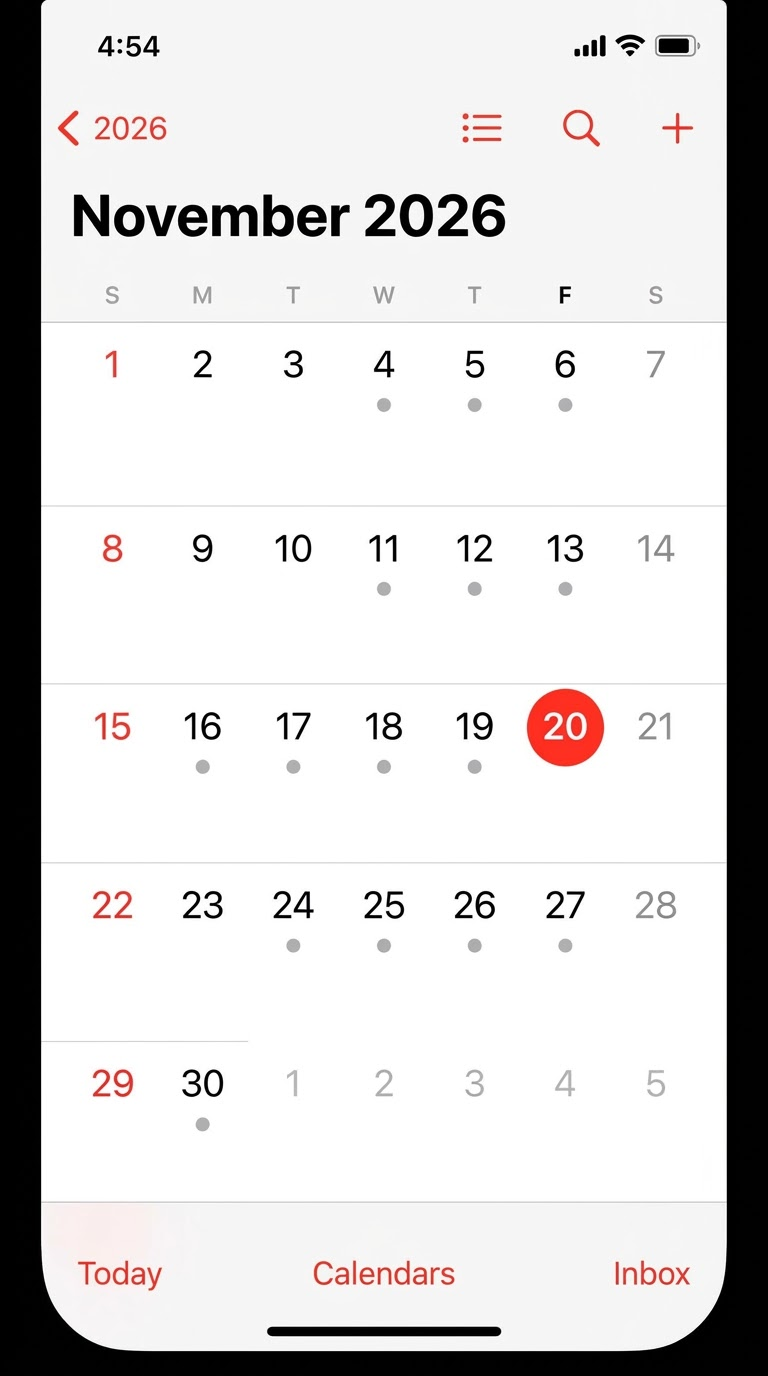
1. Apple iPhone: Apple Calendar (iOS)
Apple iPhones feature Apple Calendar built directly into iOS. Key visual traits to recognize:
- Signature Red Accents: Uses high-contrast red typography and iconography—including a solid red circle highlighting the current date—against a clean background.
- Top Action Toolbar: Houses quick-access buttons for switching list modes, searching events, and adding new entries ( + ) along the top edge of the screen.
- Bottom Navigation Tabs: Anchors primary navigation at the bottom of the display with dedicated Today, Calendars, and Inbox tabs.
Adding Your OET Account to Apple Calendar:
- Open Settings on your iPhone or iPad.
- Tap Mail (or Accounts depending on your iOS version).
- Tap Add Account > select Google.
- Sign in with your OET-registered email address and password.
- Toggle Calendars ON: Ensure the Calendars switch is enabled. (Tip: If your email is a non-Gmail address like iCloud or MSN, leave Mail toggled off and sync Calendars only).
Showing or Hiding Calendars: Open the Calendar app, tap Calendars at the bottom center, and check or uncheck individual chapter calendars to show or hide them from your main schedule.
Alternative for iPhone users: You can also install the official Google Calendar app directly from the Apple App Store if you prefer the Google interface over Apple Calendar.
Apple Calendar on Mac Computers & iPad
On macOS, configure your Google Account under System Settings > Internet Accounts > Google. The desktop iCalendar app presents a multi-column view: the left sidebar organizes your accounts (iCloud vs. Google Account Calendars), while the main calendar view allows viewing and editing events directly with full two-way synchronization.
Note on Subscriptions: While you can subscribe to an OET calendar feed via an iCal URL, subscriptions are read-only. Subscribing only displays events; adding your Google Account under device Settings allows full account synchronization for adding and editing events.

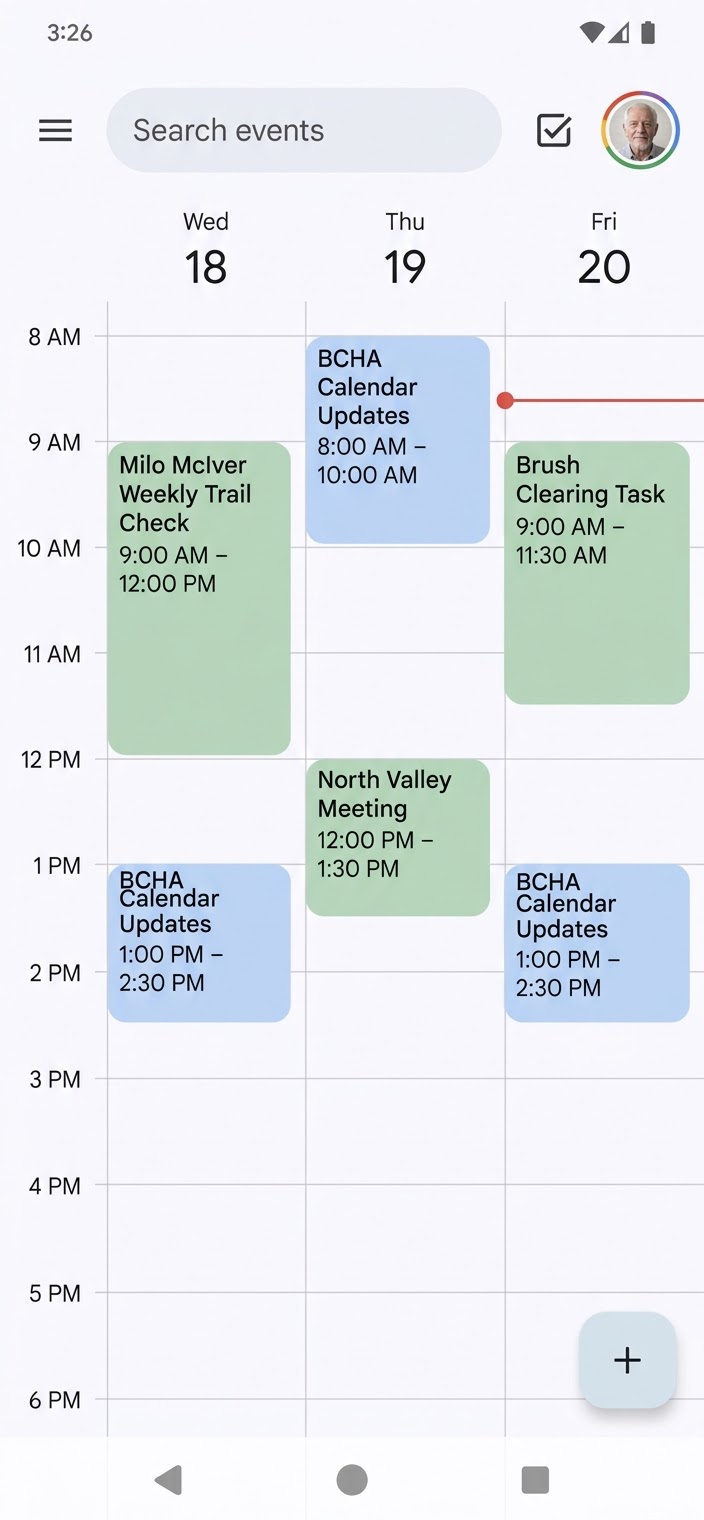
2. Google Pixel & Pure Android: Google Calendar App
Google Pixel phones and many stock Android devices feature Google Calendar as their native system calendar application:
- Material You Design: Adapts dynamically to your device wallpaper color palette and features a floating rounded + action button in the bottom-right corner.
- Integrated Google Tasks: Includes a dedicated checkmark icon in the top navigation search bar to toggle and manage Google Tasks alongside calendar events.
- Rounded Event Blocks: Displays color-coded event blocks with rounded corners and clear typographic hierarchy across daily and multi-day grids.
Configuring Google Calendar on Android / Pixel:
- Go to Android Settings > Passwords & accounts (or Accounts).
- Tap Add account > Google and log in with your OET-registered email.
- Open the Google Calendar app, tap the top-left menu (three horizontal lines), and toggle the colored checkboxes next to your chapter calendars.
- Tip: If a chapter calendar is not visible, tap Settings at the bottom of the menu, select the calendar, and toggle the Sync slider to ON.
3. Samsung Galaxy: Samsung Calendar (One UI)
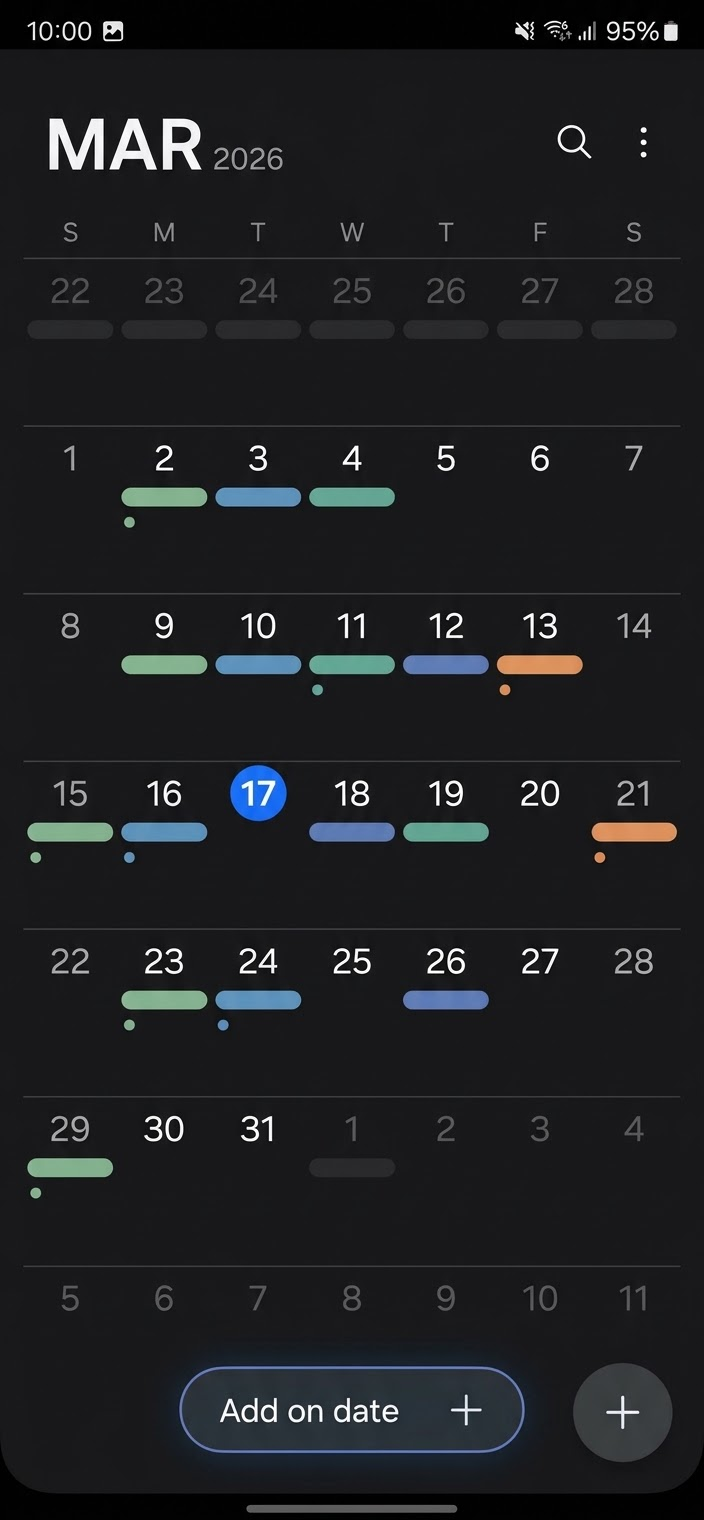
Samsung Galaxy smartphones come pre-installed with Samsung Calendar, styled with Samsung’s One UI visual interface:
- Minimal Month Grid: Features a clean, spacious month grid headed by an abbreviated all-caps month label (such as
MAR) at the top of the screen. - Bottom Quick-Add Bar: Displays a pill-shaped bar (Add on date) paired with a prominent + button near the bottom thumb zone for rapid event creation.
- Built-In Date Stickers: Includes native sticker icons that users can attach directly onto calendar dates for quick visual markers.
Connecting Your OET Google Account on Samsung Galaxy:
- Open Samsung Settings > Accounts and backup > Manage accounts.
- Tap Add account > Google and sign in with your OET-registered email address.
- Ensure Sync Calendar is toggled ON under your Google account settings.
- Open Samsung Calendar, tap the slide-out menu (three lines), expand your Google account, and check the chapter calendars you wish to display.
Samsung Pro-Tip: Even though Samsung includes its own calendar, you can also download and install the official Google Calendar app from the Google Play Store on any Samsung phone. Many members find having the dedicated Google Calendar app installed makes managing OET cloud events even simpler.
4. PCs, Chromebooks & Web Browsers
- Open Your Web Browser: Navigate to https://www.google.com (Google Chrome is recommended).
- Sign in with Your OET Email: Log in using the Google Account created with your OET-registered email address.
- Launch Google Calendar: Click the 9-dot Google App Launcher icon in the upper-right corner and select Calendar.
Verification & Additional Resources
- OET Chapter Event Dashboard: Access and bookmark https://dashboard.myoet.org on your smartphone, tablet, or PC for the easiest chapter event management.
- Verify Your Events: The OET website updates instantly! Visit the OET Calendar Month View to confirm that your events are listed with correct dates, times, and maps.
- Complete Help Document: For additional walkthroughs and screenshots, visit the OET Cloud Services Portal and download the guide: Managing the Chapters Online Calendar (PDF).
- Getting Help: If you encounter difficulties setting up your Google Account or adding events, contact Marty DeVall (OET Web Administrator) at web@oregonequestriantrails.org.





Leave a Reply